Your code is never stored. Processing exclusively in EU data centers. GDPR-compliant.
View our security standardsAI Coding Agent
AI coding agent with 4 modes, 19+ tools and extended thinking. Write, debug, plan and review code autonomously.
Agent Mode
Full tool access and autonomous coding for complex tasks.
Plan Mode
Read-only planning and analysis without changing code.
Ask Mode
Quick code questions and explanations, no file changes.
Debug Mode
Structured debugging workflow from reproduction to fix.
Extended Thinking
Adaptive reasoning with a configurable thinking budget.
Vision & Images
Image input, paste from clipboard, and visual analysis.
The 4 Agent Modes in Detail
Switch modes at any time with /mode. Each mode gives the agent a different level of access and focus — from full autonomous execution to read-only question answering.
agent Full access Agent Mode
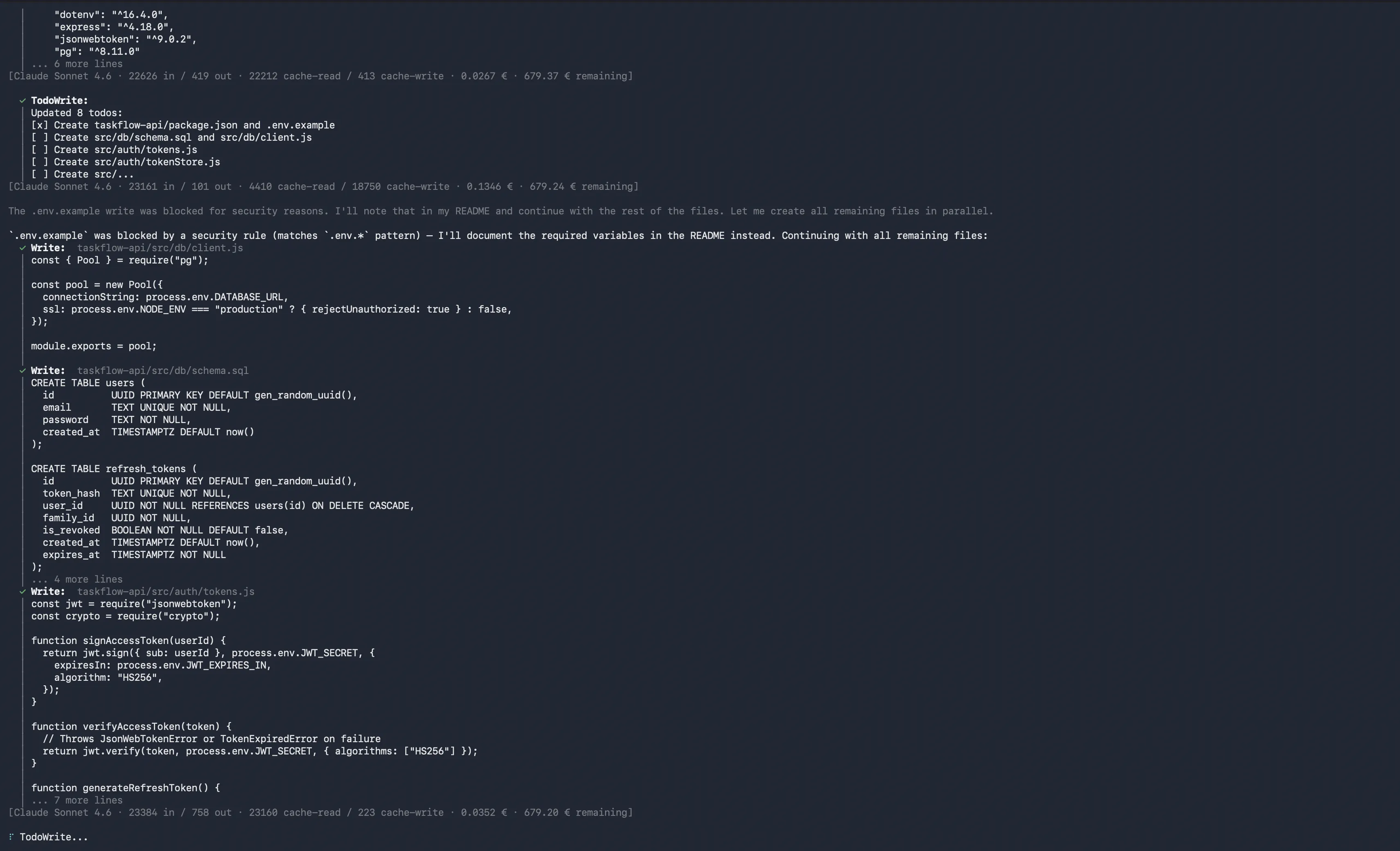
The default mode. The agent reads files, writes code, runs shell commands, and executes multi-step workflows autonomously. Ideal for implementing features, fixing bugs, or running complete development cycles from spec to test.
lurus "Fix the auth bug in user.service.ts and write unit tests" plan Read-only Plan Mode
Read-only planning mode. The agent explores the codebase, creates structured implementation plans, and generates todo lists — without modifying a single file. Perfect for architecture decisions, refactoring strategies, or onboarding to a new codebase.
/mode plan ask Q&A Ask Mode
Read-only question-answering mode. Ask anything about your codebase and get accurate, grounded answers. No file changes, no side effects. Great for code walkthroughs, understanding legacy code, or quick API lookups.
/mode ask debug Systematic Debug Mode
Systematic debugging mode. The agent follows a structured process: reproduce the issue, identify the root cause, propose a fix, implement it, and verify. Works with IDE diagnostics and inline error context when VS Code is connected.
/mode debug 19+ Built-in Tools
Every tool is available out of the box — no plugins required. The agent selects the right tool automatically based on the task.
File Tools
ReadWriteEditMultiEditDeleteGlob Full file system access: read, create, modify, and delete files. MultiEdit applies multiple changes in a single atomic operation.
Shell Tools
BashBackground Processes Execute any shell command — build tools, test runners, linters, git. Background mode keeps long-running processes alive during the session.
Browser Tools
Headless ChromeScreenshotsDOM Interaction Full browser automation via Chrome DevTools Protocol. Take screenshots, click elements, and test JavaScript-rendered pages without leaving the terminal.
Search Tools
GrepGlobSemantic SearchWeb Search Exact pattern matching with Grep, file discovery with Glob, and meaning-based code search via vector embeddings — plus Brave Search for current documentation.
Extended Thinking
Extended Thinking lets the model reason through complex problems step by step before responding. Activate it with /thinking — the agent will spend extra tokens on internal deliberation before giving you an answer.
When to use Extended Thinking
- Architecture decisions with many tradeoffs
- Debugging complex, multi-file issues
- Algorithm design and performance optimization
- Security audit with many edge cases
/thinking # Enable /thinking off # Disable Real-World Use Cases
New Feature from Spec to Tests
Give the agent a feature description. It reads the existing codebase, implements the feature, writes unit and integration tests, runs them, and fixes any failures — all in one session.
- 1 Read spec & explore codebase
- 2 Implement feature code
- 3 Write tests (unit + integration)
- 4 Run tests & fix failures
Legacy Code Migration
Use Plan Mode to map out all dependencies and impact. Then switch to Agent Mode to execute the migration step by step, with automated tests verifying each change.
- 1 Plan Mode: analyze dependencies
- 2 Generate migration plan
- 3 Agent Mode: execute step by step
- 4 Tests verify each change
Security Audit
Combine agent mode with the built-in security scanner. The agent scans for vulnerabilities, explains each finding in context, and optionally patches them with your approval.
- 1 Run /scan for OWASP findings
- 2 Agent explains each finding
- 3 Propose patches per vulnerability
- 4 Verify with re-scan
Frequently Asked Questions
Is it safe to run agent mode on production code?
acceptEdits auto-approves file changes only, while plan makes the agent read-only.Which mode should I use for code review?
ask mode for quick questions about existing code, or /review (requires lurus-code-review plugin) for a structured multi-phase review with findings and suggestions.How does Lurus Code compare to GitHub Copilot?
Can I limit which files the agent can modify?
/permissions to set persistent rules, or start with --permission-mode acceptEdits to require confirmation for every file write. You can also add a LURUS.md rule that instructs the agent never to touch certain directories.Does the agent learn from my codebase?
/indexing on. It does not train on your code — all processing happens per-session and no source code is stored on Lurus servers after the session ends.Ready to code smarter?
Join the waitlist and use every mode, tool, and extended thinking in one surface.
Get started